WordPress Integration
Connect your WordPress website to automatically publish generated articles directly from the platform.
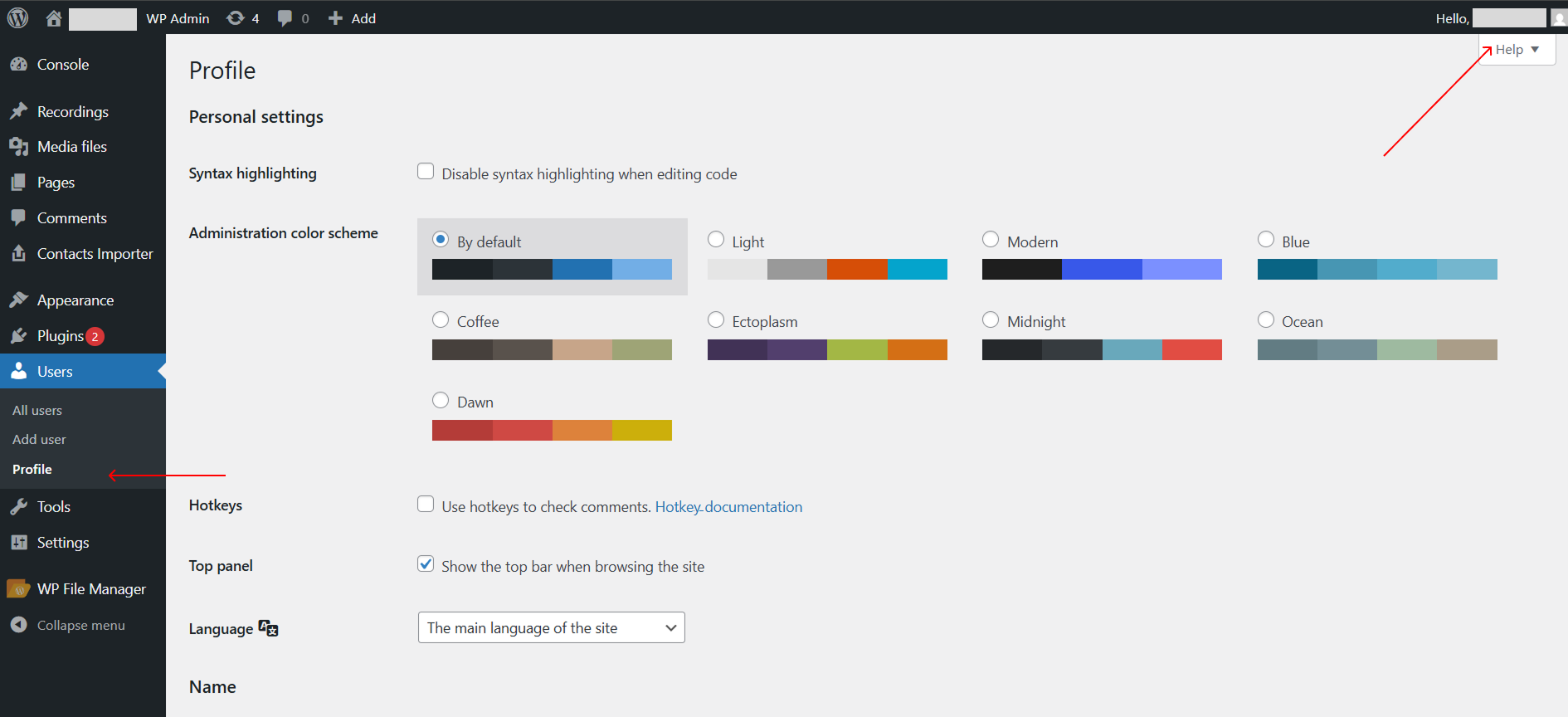
Go to your WordPress admin dashboard and open Users → Profile. On the profile page, scroll down until you find the Application Passwords section.
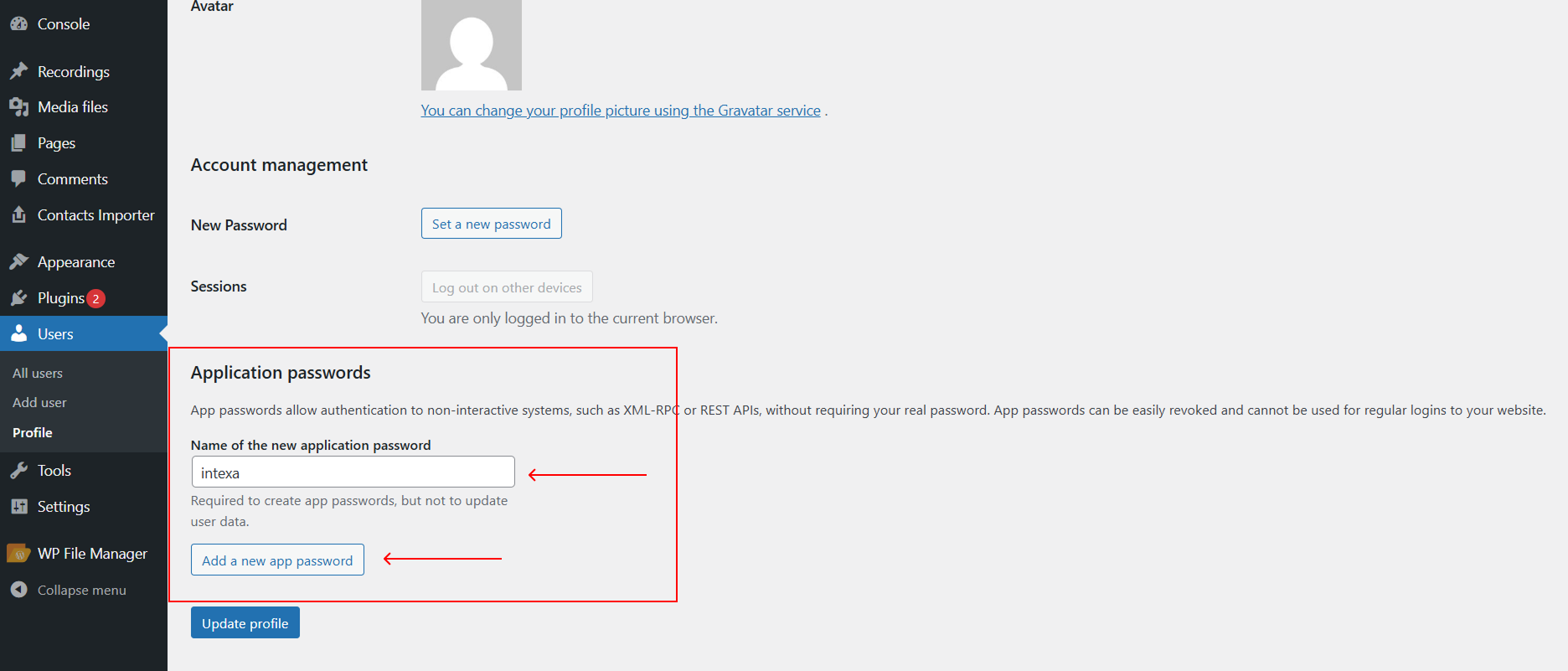
In the Application Passwords section, enter any name for the new password (for example: Intexa AI integration) and click Add New Application Password. WordPress will automatically generate a password for API access.
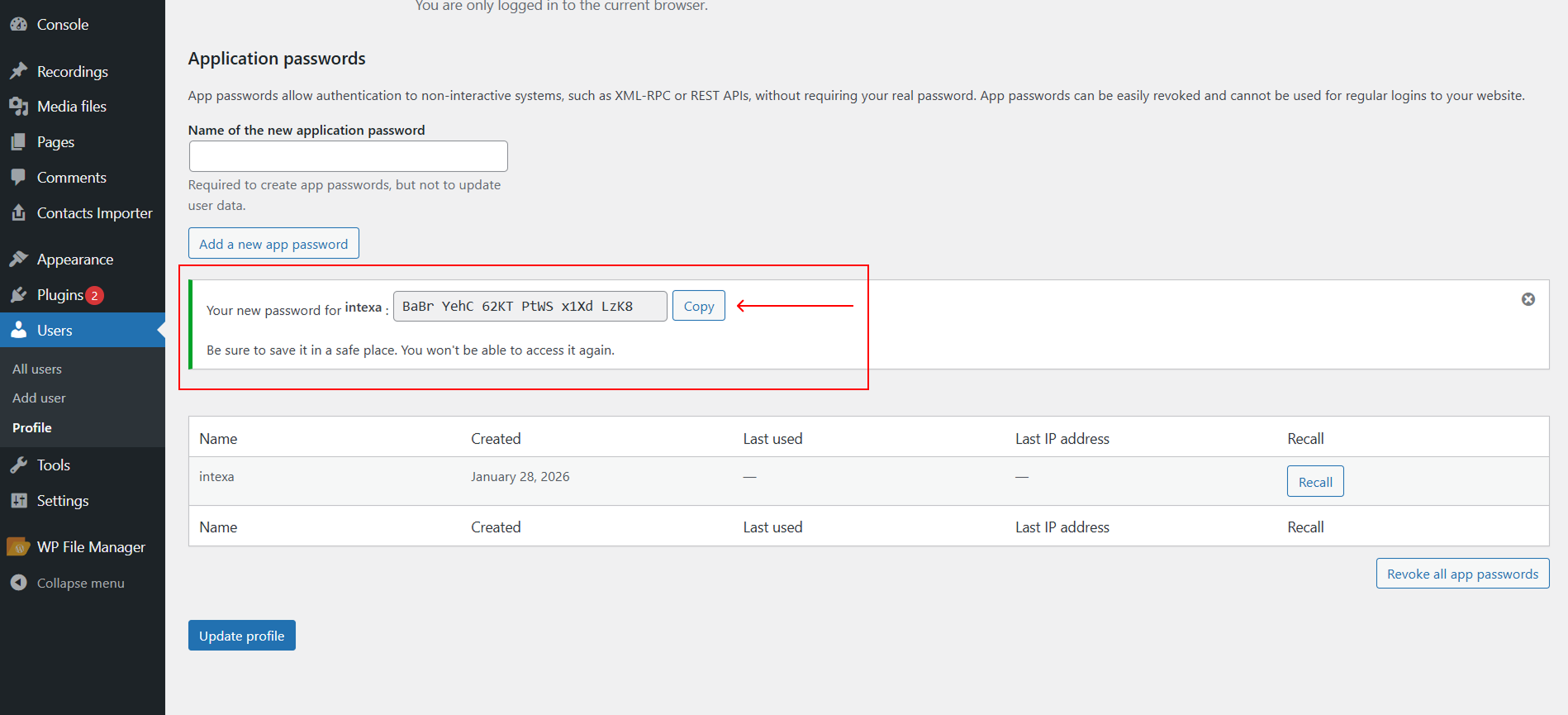
After creation, a table with the generated password will appear. Copy the password immediately, as it will not be shown again. This password will be used to connect your website to the service.
Open the Account section in the Intexa AI dashboard and locate the WordPress Integration block. You will see a form for connecting your website.
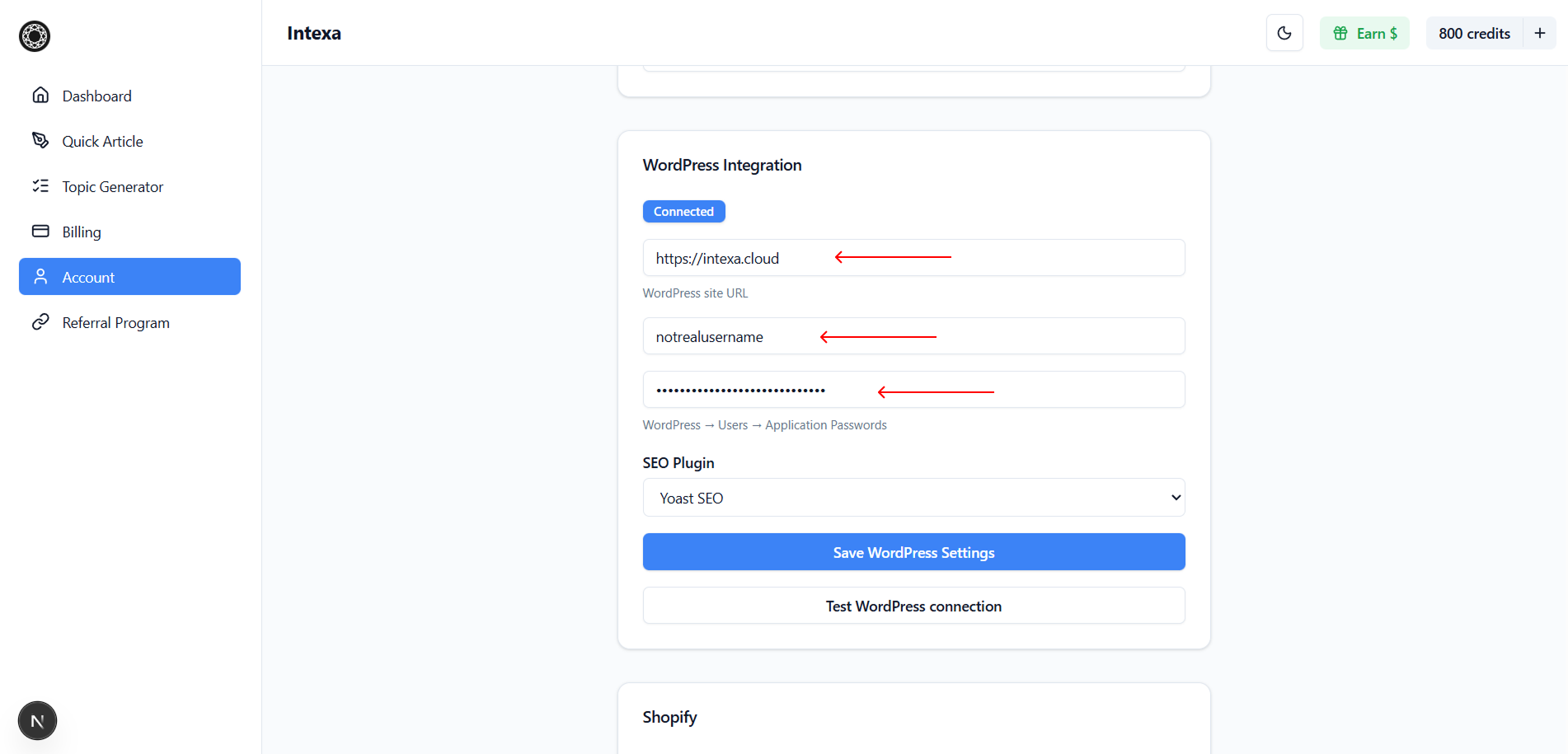
Fill in the required fields: Site URL (your website address), Username (your WordPress username), and Application Password (the generated password). Then click Connect or Save Integration.
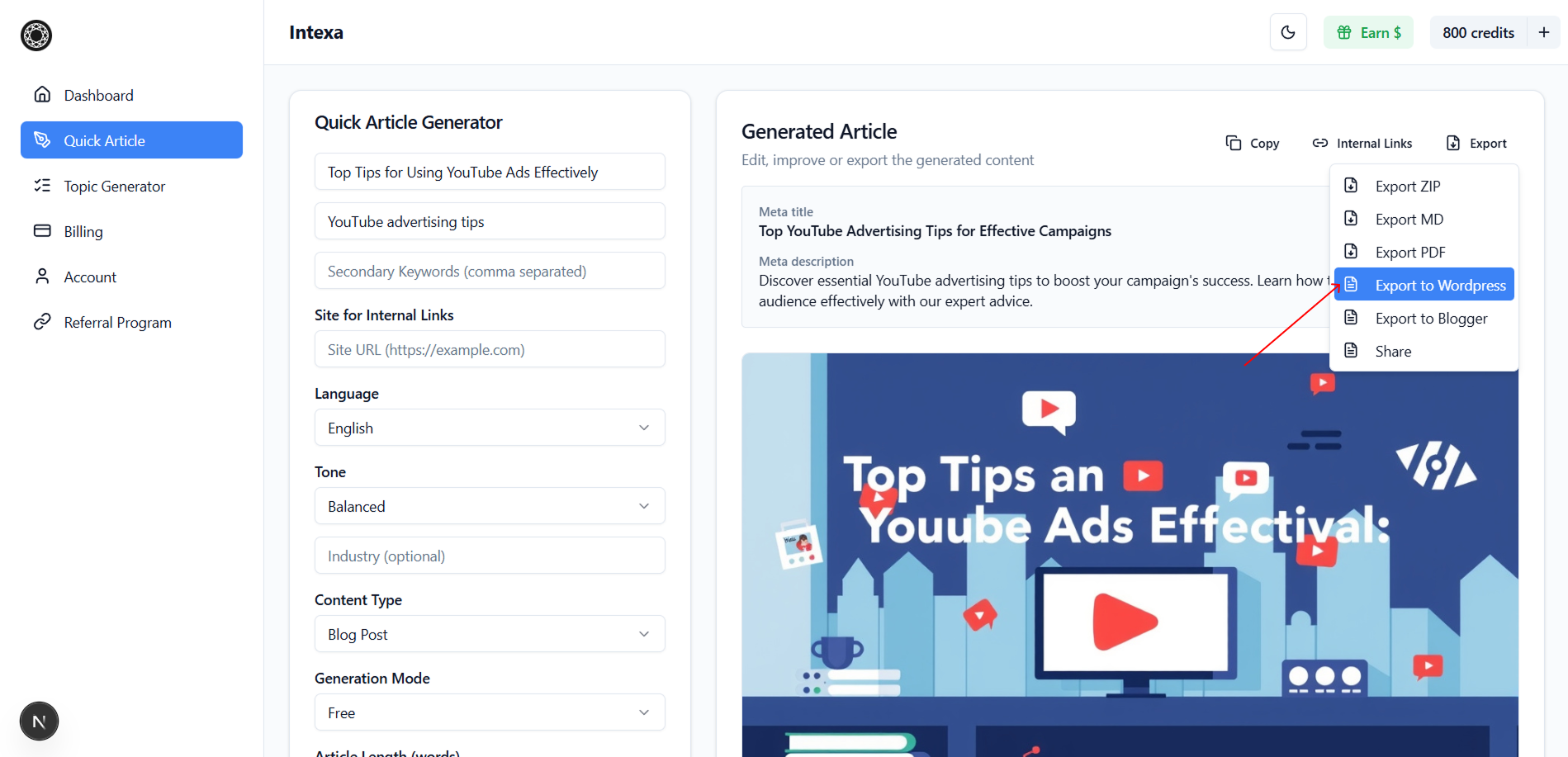
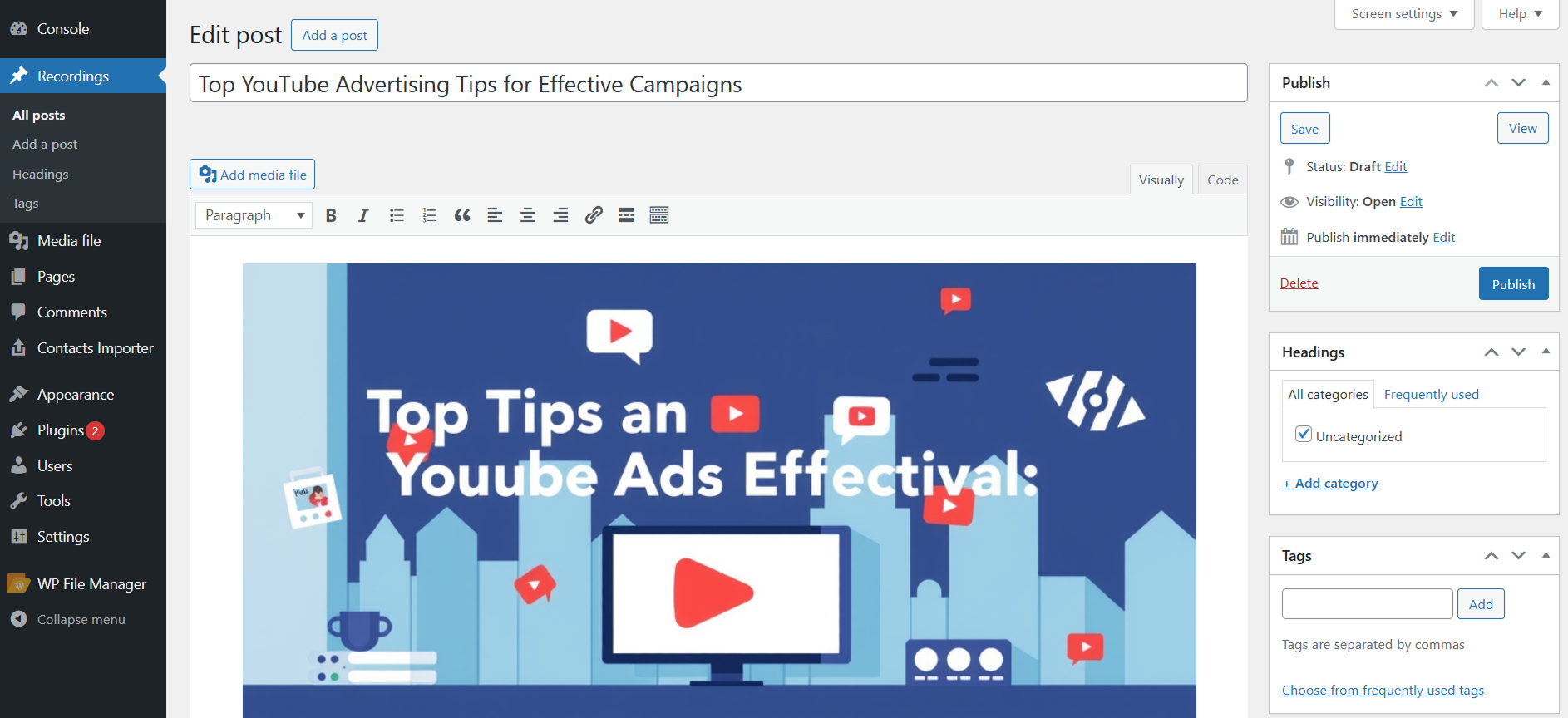
After generating the article, click Export and select Export to WordPress. The article will automatically appear in your WordPress dashboard as a draft post, where you can review, edit, and publish it when ready.
Application passwords are displayed only once after creation. Make sure to save the password securely before leaving the profile page.